Body

How to Create a New Site
The new Sites are very easy to use as a quick method for collaboration. ESS and IT Security have been using Sites to store documentation on systems and processes for quite a while.
- Open Sites from the Google Apps menu (the 3x3 grid of dots).
- Click New Google Sites from the left-hand menu.

3. Select the Create New Site button (represented by a plus '+' icon). to create a new Site.
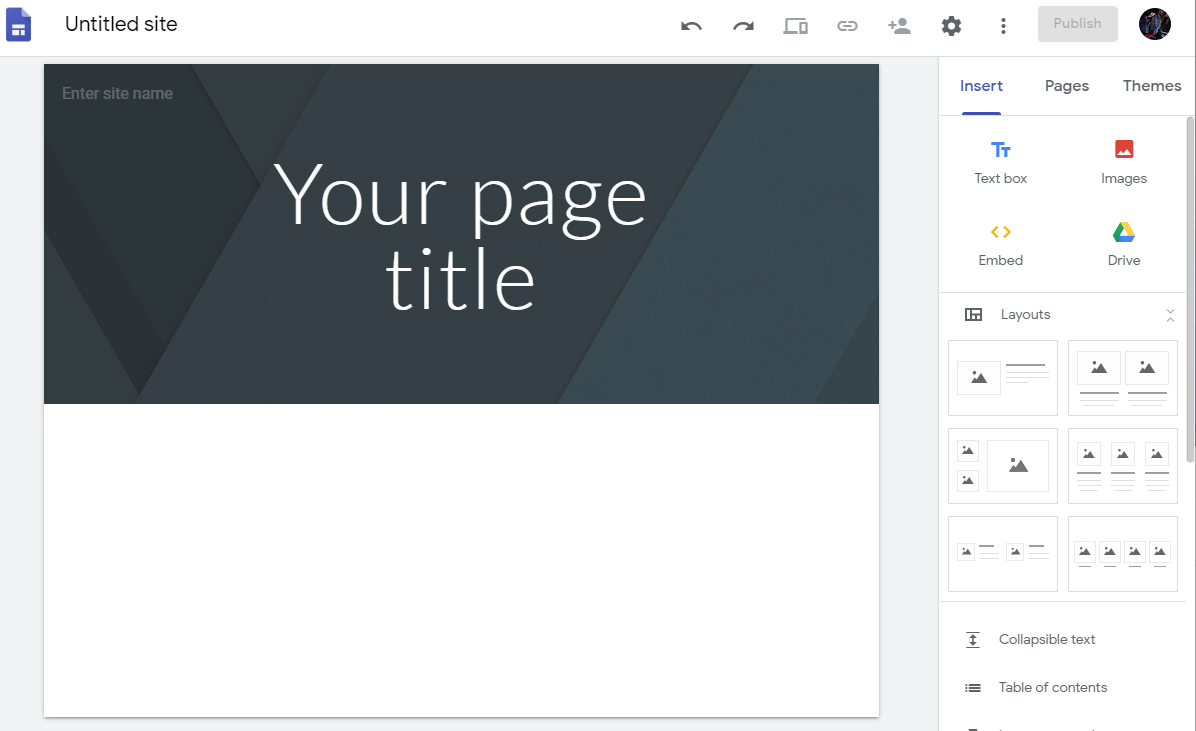
4. Choose the layout you like from the right menu.

Adding Content
- Click the plus signs in the layout to add content such as images, calendars, files from Drive or files from your local machine.

2. In just a few minutes, you could have a site up with forms for others to fill out, files from Drive available, etc.

In this example, the calendar and PDF are both fully visible and scrollable in the web page, no need to go to Calendar or Drive. You can also simply add a space or page where you can just type in whatever information or instructions you want.
The site can be shared with the world, only the tcnj.edu domain or you can specify only certain people to only view the site or add permissions to make changes.